
If you’ve followed this series, you’ve set up the schema markup nearly every business needs: your foundation, your local business details, your services and products. This post is about three types that work a little differently. You only add Event, Video, and Recipe schema markup when you actually publish that kind of content, and the payoff for using them is some of the most eye-catching results you can earn in search.
Quick refresher if you landed here first: schema markup is code that tells search engines and AI tools what your content is, so they can understand it and show it off. New to all this? Start with What Is Schema Markup? A Beginner’s Guide, then come back.
These three are the fun ones. Where some schema types work quietly in the background, these can put your event dates, a video thumbnail, or a recipe card with star ratings right on the search results page. Here’s when to use each, the rules that trip people up, and copy-paste prompts to build them.
Why These Three Are Different
Most of the schema markup in this series describes your business. Organization and LocalBusiness say who and where you are. Service and Product say what you sell. Event, Video, and Recipe are content-specific, which means they describe a particular thing you’ve published, not your business as a whole.
That changes how you decide whether to use them. You don’t need all three. You add the one that matches what you actually put on your site. Host workshops? Event. Publish videos? Video. Share recipes? Recipe. If you don’t do one of those things, you skip that type and move on, guilt-free.
Here’s the part worth getting excited about. All three still earn rich results in 2026, even as Google has trimmed the list (FAQ rich results were retired in May 2026, and the old HowTo result is long gone). These three survived the cuts, which tells you Google still finds them useful. And they all sit atop the foundation you’ve already built. Your Organization or LocalBusiness block stays exactly as it is. These new blocks just describe the specific events, videos, or recipes on their own pages.
First, Check What Your Website Already Does
Before you generate a single line of code, find out what your site is already doing on its own. This is the step people skip, and skipping it either wastes your afternoon or creates a real mess.
Some website builders generate a few of these types automatically:
- Squarespace creates schema for blog posts, products, events, and your business info. It does not create Recipe schema.
- Wix creates schema for blog posts, Wix Stores products, Wix Events, and Wix Bookings services. It does not create Recipe schema.
- Shopify creates Product, Organization, and breadcrumb schema. Videos, articles, and events need a theme edit or an app.
- WordPress depends entirely on your plugins, since WordPress itself doesn’t add any of this. For events, The Events Calendar generates Event schema. For recipes, plugins like WP Recipe Maker and Tasty Recipes generate Recipe schema. For video, an SEO plugin like Yoast (with its Video SEO add-on), Rank Math, SEOPress Pro, or AIOSEO can detect an embedded video and generate VideoObject markup for it.
One thing worth knowing if you’re on WordPress: simply pasting a YouTube link into a post does not create video schema. WordPress happily embeds the video, but it doesn’t tell search engines anything about it. That takes a plugin, or the code below.
So how do you find out what you’ve got? Run the specific page through Google’s Rich Results Test. If it reports an event, a video, or a recipe on that page, your site already handles it, so you can skip that section entirely. If it comes back empty, that’s your answer too.
Two reasons this matters. First, you might be about to do work your site already does for you. Second, and more important: if your plugin generates a block and you paste in a second one, you can end up with duplicate, conflicting markup, which is worse than having none. Check first, then fill only the gaps.
Also worth knowing: automatically generated schema is often the bare minimum. It might have the required fields but skip the recommended ones that actually earn the good rich result. So if the test shows a recipe but no ratings or cook time, there may still be room to improve it in your plugin’s settings.
Event Schema for Your Events
If you host events, like workshops, classes, open houses, live music, or fundraisers, Event schema can get those events featured in search with their name, date, and location shown right in the result. For a business that runs events, that’s a real visibility win. Eventbrite saw a 100% increase in traffic after they started using it.
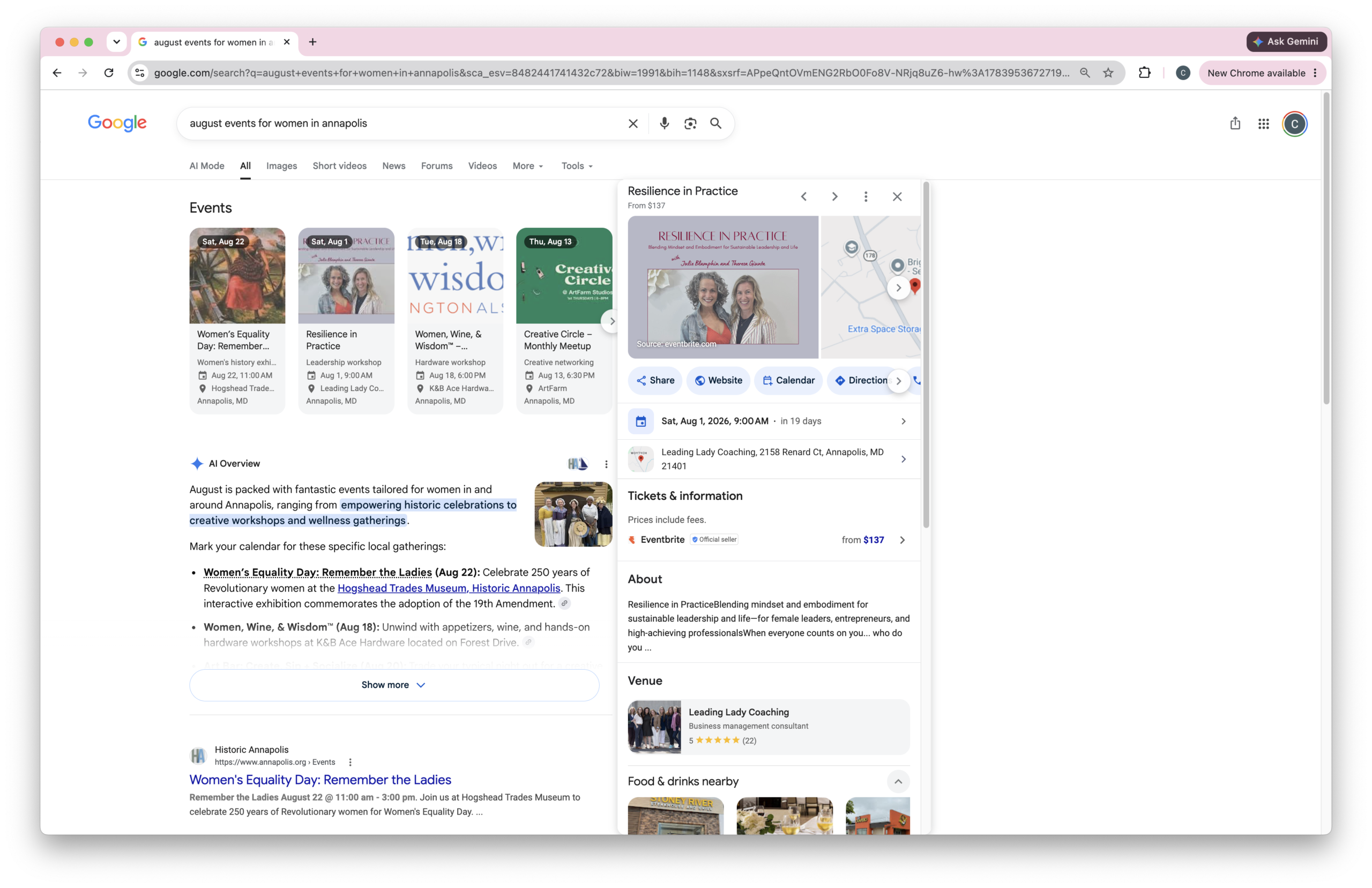
Here’s the rule that trips people up, and it changed recently, so a lot of older advice is now wrong. To be eligible for the event rich result, your event must be a real, in-person event at a physical location and bookable by the general public. Google removed support for online-only events, so a virtual-only webinar won’t qualify for rich results anymore. Still, it’s a good idea to add schema markup to virtual events, so search engines and AI tools have structured data to better understand them.
Check first: if you’re on Squarespace or Wix and using their built-in events feature, or on WordPress with The Events Calendar or a similar plugin, your event schema is likely already handled. Run one event page through the Rich Results Test to confirm before you add anything.
What goes in an Event block: at minimum, the event’s name, its start date and time, and its physical location with a real address. From there, you’ll want the end date, a description, an image, and, if you sell tickets, an offer with the price and a link to buy. If someone specific is performing, or your business is the organizer, you can include those too.
Where it goes: on the page for that specific event. One event, one block, on its own page.
Here’s the prompt. Run it once per event page, in the same chat where you built your foundational schema so it can connect the event to your business as the organizer (the prompt tells the AI to check the homepage if you use a different chat):
Create Event schema markup for a single event page on my website.

The event page is: [PASTE THE URL OF ONE EVENT PAGE]

Work in this order:

Step 1: Read that page and pull the event's name, start date and time, end date and time, physical location and full address, a short description, an image, and ticket or registration details (price and a link) if there are any. If you cannot open the page, tell me and I will paste the content in.

Step 2: Show me what you found and ask me to confirm the details and fill any gaps before writing code.

Step 3: After I confirm, generate the schema markup using these rules:


  - Include: name, startDate, endDate, location (with the venue name and full postal address), description, and image. Add an offers block with price, priceCurrency, availability, and a url if tickets or registration are involved.

  - Set organizer to reference my LocalBusiness or Organization using its @id. If you don't have the @id value info, check the website's homepage for it.

  - Never guess or invent dates, addresses, or prices. Use exactly what is on the page, and leave out anything I did not provide.

  - Output one valid JSON-LD <script type="application/ld+json"> block for this page.

  - After the code, list anything I should double-check before publishing.
For your next event, run the prompt again with that event’s URL.
Video Schema for Your Videos
If you embed videos on your site, like a tutorial, a tour, a welcome message, or a demo, VideoObject schema can help your page earn a video result in search, complete with a thumbnail, and it makes your video eligible to show in the Videos tab.
YouTube provides its own markup for the video on YouTube itself, so if your video lives there, it already has a chance to show up in the rich results. VideoObject schema matters for the video embedded on your website, so that the URL on your website, not just the YouTube URL where the video lives, can be eligible for a video result.
Check first: this is the one type nothing handles for you by default. If you’re on WordPress and you just pasted a YouTube link into a post, you almost certainly have no video schema. An SEO plugin with video support (Yoast’s Video SEO add-on, Rank Math, SEOPress Pro, or AIOSEO) can detect your embeds and generate this automatically, which is the easier path if video is a regular part of your content. Otherwise, use the prompt below. Either way, run the page through the Rich Results Test to see where you stand.
What goes in a Video block: the required pieces are the video’s name, a description, a thumbnail image URL, and the date you uploaded it. Beyond that, you’ll want the URL to the actual video file or its embed URL, and the duration. If your video has clear chapters, you can mark those up too, so searchers can jump to key moments.
Where it goes: on the page where the video is embedded.
Here’s the prompt. Run it once per page that has a video on it:
Create VideoObject schema markup for the video embedded on a single page of my website.

The page is: [PASTE THE URL OF ONE PAGE WITH A VIDEO]

Work in this order:

Step 1: Read that page and pull the video's title, a description, the thumbnail image URL, the upload or publish date, the duration, and the video URL (the file URL or the embed URL). If you cannot open the page, tell me and I will paste the details in.

Step 2: Show me what you found and ask me to confirm and fill any gaps before writing code. The upload date and thumbnail URL are the two you are most likely to be missing, so ask me for those specifically if you cannot find them.

Step 3: After I confirm, generate the schema using these rules:

  - Include the required properties: name, description, thumbnailUrl, and uploadDate. Add duration, contentUrl, and embedUrl where I have them.

  - Use the real details from the page. Never guess or invent values, and leave out anything I did not provide.

  - If there is more than one video on the page, create one VideoObject block per video.

  - Output valid JSON-LD in a <script type="application/ld+json"> block for this page.

  - After the code, list anything I should double-check before publishing.
Recipe Schema for Your Recipes
If you publish recipes, this is the one with the biggest visual payoff. Recipe schema can earn you a rich result with a photo, star ratings, cook time, and calorie count, and it can land you in Google’s recipe carousel, that scrollable row of recipe cards at the top of food searches.
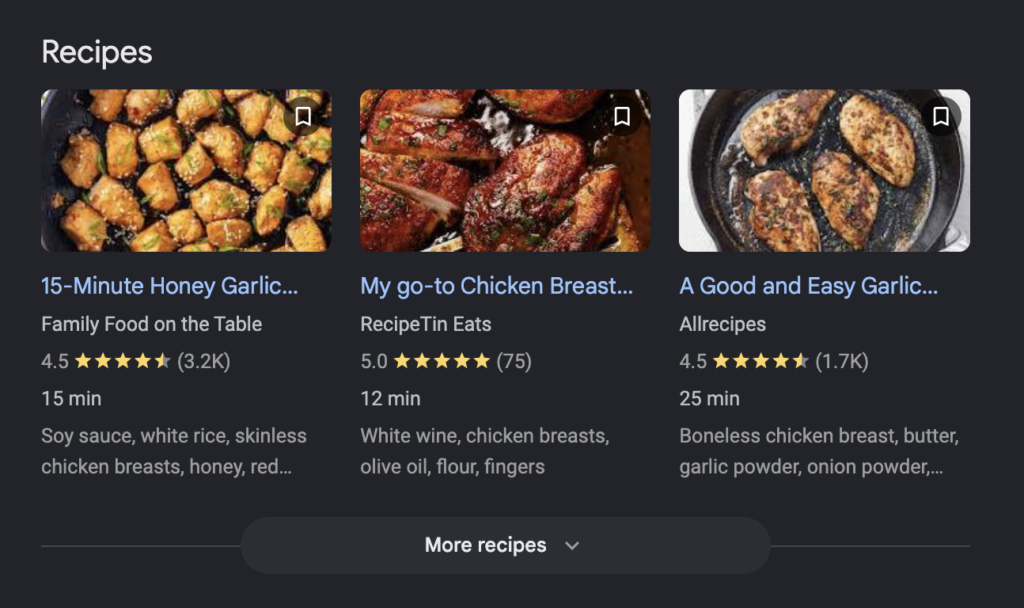
It can also move real numbers. In one split test on a food site, adding Recipe schema lifted impressions about 36% and clicks about 94%. Take those results with a grain of salt, since that’s a single site over a few weeks and your results will vary, but it points in a clear direction. When recipes are your content, this markup earns its keep.
Check first: none of the major website builders automatically generate Recipe schema, so if you’re on Squarespace, Wix, or Shopify, you’ll need to add it yourself. On WordPress, a recipe plugin like WP Recipe Maker or Tasty Recipes very likely generates it for you already. Run a recipe page through the Rich Results Test. If it reports a recipe, you’re set.
A couple of honest notes. The image you put in your Recipe markup is used for the recipe rich result only. It does not control which image shows for your page in regular search results, so follow good image practices separately. And if you show star ratings, they have to come from genuine customer reviews. Invented ratings can earn you a manual penalty from Google, so never fake them.
What goes in a Recipe block: the required pieces are just the recipe name and an image. To actually earn the rich card, you’ll want the author, the date, a description, prep time, cook time, total time, yield, ingredients, step-by-step instructions, and nutrition info. Add genuine ratings and a how-to video if you have them.
Where it goes: on that recipe’s own page.
Here’s the prompt, run once per recipe:
Create Recipe schema markup for a single recipe page on my website.

The recipe page is: [PASTE THE URL OF ONE RECIPE PAGE]

Work in this order:

Step 1: Read that page and pull the recipe's name, image, author, publish date, a short description, prep time, cook time, total time, the yield (how many servings), the ingredient list, the step-by-step instructions, and nutrition info if it is shown. Note any genuine customer ratings or reviews on the page. If you cannot open the page, tell me and I will paste the content in.

Step 2: Show me what you found and ask me to confirm and fill any gaps before writing code.

Step 3: After I confirm, generate the schema using these rules:

  - Include name and image at minimum, plus author, datePublished, description, prepTime, cookTime, totalTime, recipeYield, recipeIngredient, recipeInstructions, and nutrition where I have them.

  - Include aggregateRating or review ONLY if there are genuine customer reviews shown on this page. Never invent ratings or reviews.

  - Use the real details from the page. Do not guess or use placeholder values, and leave out anything I did not provide.

  - Output one valid JSON-LD <script type="application/ld+json"> block for this page.

  - After the code, list anything I should double-check before publishing.
Stacking Types on One Page
Sometimes a single page has more than one thing. A recipe page might have the recipe, a video showing how to make it, and a breadcrumb trail. The good news is you can mark up all of it. Google specifically allows multiple types on a single page, which can make that page eligible for more than one type of result.
The rule is simple: include the type that best reflects the page’s main point, and make every block complete. On a recipe page, Recipe is the star, with the video and breadcrumb supporting it. Just don’t add a type for something that isn’t genuinely on the page, and don’t leave a block half-finished. Each one should fully and accurately describe what it covers.
Where to Put the Code (and What to Do If Your Builder Won’t Let You)
The usual advice is to paste your schema into the head of the specific page it describes. That works for most website builders on most page types, usually through an SEO plugin or a per-page code setting.
Some builders don’t let you add code to the head of an individual blog post. Squarespace is the clearest example: regular pages have a page-level header code injection field, but individual blog posts don’t. In those cases, you can just put the code in the body of the post instead. Google accepts schema markup in either the head or the body of a page. Its own documentation describes JSON-LD as a script tag that can sit in the page head or in the body, and Google’s John Mueller has confirmed the body works. So on Squarespace, you’d drop a Code Block into the individual blog post and paste your JSON-LD script into it. The schema still gets read, you still qualify for rich results, and you keep it specific to that one post.
Two things to watch. Make sure you’re pasting into a code block that outputs raw code, not a text block that will escape it or a rich-text editor that might mangle the quotes. And after you publish, validate the live page, since that’s the only way to know for sure the code came through intact.
Validate Before You Publish
Same routine as the rest of the series. Run each block through the Schema.org Markup Validator and fix anything flagged as an error. Warnings are usually fine; errors mean something’s actually broken.
Here’s a nice difference from the service and product post, though. Because Event, Video, and Recipe all produce rich results, Google’s Rich Results Test will actually show them. So after you publish, run your page through it, and you’ll see what you’re eligible for. This is also how you catch a duplicate: if it reports two events or two recipes on one page, your plugin and your pasted block are both firing, and you should remove one.
If you have Google Search Console, keep a loose eye on its reports too. No ongoing babysitting required, but if an event date, a video, or a recipe changes, update its schema to match.
Where to Go From Here
That’s the whole schema series. Here’s the full map so you can fill any gaps:
- New to schema markup? Start with What Is Schema Markup? A Beginner’s Guide, which also covers the types most sites need: Organization, breadcrumbs, articles, author info, and FAQs.
- Have a storefront or service area? Set up your LocalBusiness schema.
- Run more than one location? Connect them the right way with the multiple locations guide.
- Sell services or products? Mark up those pages with Service and Product schema.
Work through the ones that fit your business, skip the ones that don’t, and you’ll have given search engines and AI tools a clear, trustworthy picture of everything you do.
Frequently Asked Questions
Your Next Small Step
You don’t have to tackle all three. Start by running one page through the Rich Results Test to see what your site already does. Then pick the one type that matches what you publish, do a single page, validate it, and add it. If you run events, mark up your next one. If you’ve got a key video or a popular recipe, start there. Once you’ve done one, the rest are copy, paste, and swap in the details.
If you’d like a guided path through the rest of your SEO with people who’ll cheer you on when you get stuck, come join us in the SEO Success Club. You’ve got this!